

Key Takeaways
Why setup matters as much as the hardware
Many households experience slow or unreliable Wi-Fi not because the router is inadequate but because it is placed incorrectly, running outdated firmware, or broadcasting on a channel crowded by a dozen neighboring networks. A router that cost twice as much will still underperform if none of those factors are addressed.
Before purchasing additional equipment, working through the configuration steps in this guide will often resolve the problem entirely. For families setting up a home from scratch, our overview of household electronics priorities can help establish what to tackle first.
What you will need
Step-by-step setup
Follow these steps in order. Steps 1 through 4 cover the essentials every household should complete. Steps 5 through 8 address performance tuning for homes with heavy device use.
Find the right physical location for your router
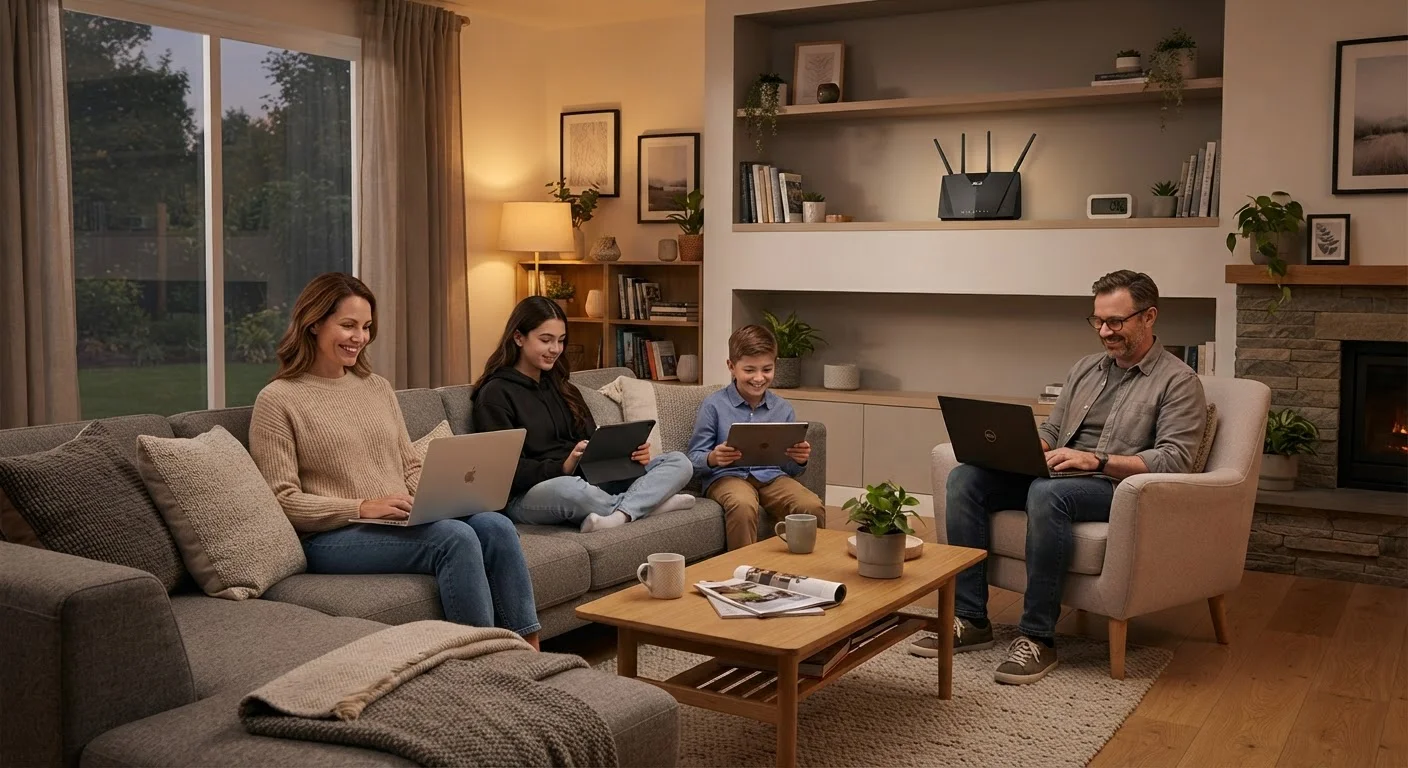
Place your router as close to the center of your home as practical, and at an elevated position such as a shelf or top of a bookcase. Wi-Fi signals radiate outward and downward, so height and centrality together reduce dead zones. Keep the router away from thick concrete or brick walls, large metal appliances, and microwave ovens, all of which absorb or scatter 2.4 GHz signals.
If your modem and router are separate units, use a short Ethernet cable between them and position the router rather than the modem where coverage is needed most.
Log in to the router admin panel
Connect a laptop to the router via Ethernet or Wi-Fi, then open a browser and type the router's admin address into the address bar. This is usually 192.168.1.1 or 192.168.0.1, and it is printed on the router label. Enter the default username and password to log in.
If you have never changed the admin password, do so immediately after logging in. The default credentials are publicly documented and leave your network settings open to anyone on the local network.
Update the router firmware
Inside the admin panel, locate the firmware or software update section (often under "Advanced" or "Administration"). Check for available updates and install them. Firmware updates fix known bugs, patch security vulnerabilities, and sometimes improve signal stability or throughput.
After the update installs, the router will restart. Wait for it to fully reboot before continuing.
Set a strong Wi-Fi password and choose WPA3 or WPA2 security
In the Wireless settings section, set your network name (SSID) to something that does not identify your address or router model, and assign a password of at least 12 characters mixing letters, numbers, and symbols. For the security protocol, select WPA3 if your router supports it. If not, WPA2-AES is acceptable. Avoid WEP or WPA (version 1), which are outdated and easily compromised.
Select a less congested Wi-Fi channel
On the 2.4 GHz band, channels 1, 6, and 11 are the only non-overlapping options. In a dense neighborhood, use a free Wi-Fi analyzer app to scan which channels neighboring networks occupy, then set your router to the least crowded one. Many routers default to "Auto" channel selection, which does not always pick the optimal channel.
On the 5 GHz band, there are more non-overlapping channels available, so congestion is less of a concern, but the same principle applies.
Split devices across the 2.4 GHz and 5 GHz bands
Most modern routers broadcast both a 2.4 GHz and a 5 GHz network. The 2.4 GHz band carries a signal farther through walls but at lower speeds. The 5 GHz band delivers higher throughput over shorter distances. Give each band a distinct network name so you can manually assign devices.
- Connect smart home sensors, older devices, and devices far from the router to 2.4 GHz.
- Connect laptops, streaming devices, and gaming consoles that are within range to 5 GHz.
Offloading high-bandwidth devices to 5 GHz keeps the 2.4 GHz band from becoming congested.
Wire high-demand devices directly with Ethernet
A desktop computer, a streaming media player connected to a TV, or a gaming console placed near the router benefits significantly from a direct Ethernet connection. Wired connections do not compete for wireless spectrum, which leaves more capacity for phones, tablets, and other devices that cannot use a cable. See our guide on wired vs. wireless connections for a detailed look at the trade-offs.
Test coverage and address dead zones
Walk through every room with a connected device and note where the signal drops or speeds fall noticeably. If one or two specific areas have poor coverage, reposition the router first before adding hardware. If the floor plan makes central placement impractical, a mesh Wi-Fi system (a set of coordinating nodes) covers large or multi-story homes more evenly than a single router plus a traditional range extender, which can cut throughput in half.
Keeping the network healthy over time
Schedule a monthly router restart
Most routers benefit from a monthly power cycle of about 30 seconds. This clears the memory, refreshes DHCP leases (the temporary addresses assigned to each device), and can resolve intermittent slowdowns. Set a recurring calendar reminder so it does not get skipped.
Once the network is running well, a few ongoing habits prevent gradual degradation. Restarting the router once a month clears memory and flushes stale connection tables. Checking the connected device list every few months helps identify devices you no longer use or, in rare cases, unknown devices that have joined the network.
Router hardware does age. After five to seven years, a router may no longer receive firmware updates from the manufacturer, at which point it poses a growing security risk. Replacing it at that point is a practical decision, not an unnecessary upgrade.